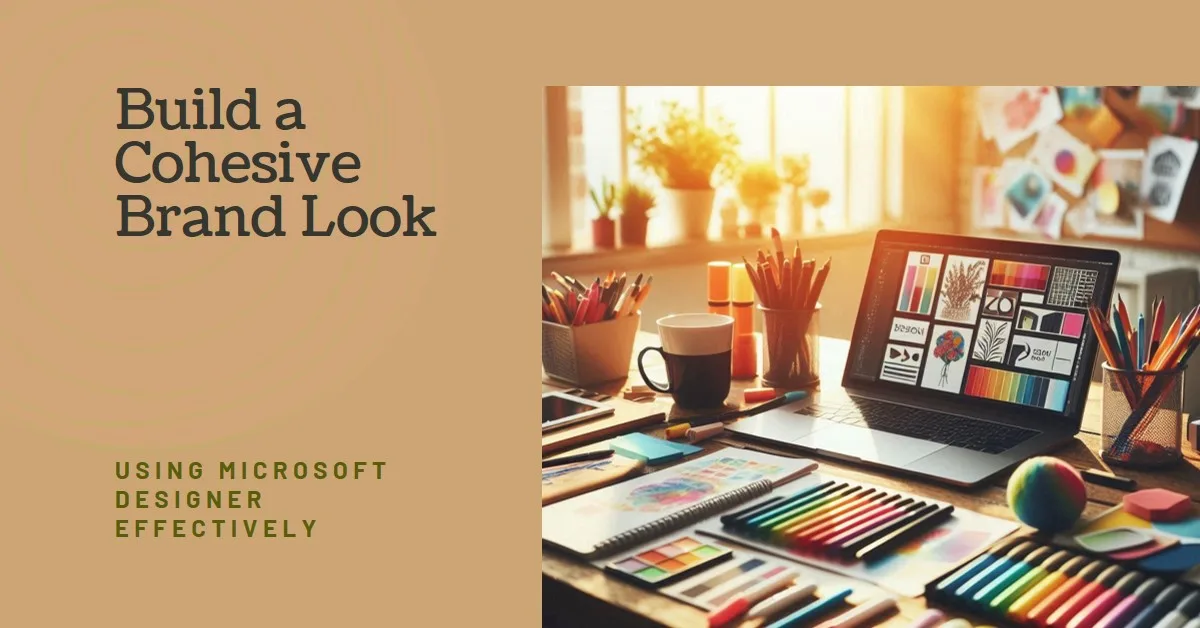
Building a recognisable brand used to require hiring expensive designers, purchasing complicated software, and spending weeks perfecting your visual identity. Those days are over. With AI-powered tools like Microsoft Designer, you can now create a professional, cohesive brand look in just hours instead of months. But here’s the challenge: having access to Microsoft Designer doesn’t automatically give you a strong brand—you need to understand how to use it to build a cohesive brand look that resonates with your audience and remains consistent across every touchpoint. Whether you’re launching a new business, refreshing an existing brand, or creating a personal brand for your freelance work, learning how to use Microsoft Designer to build a cohesive brand look will save you time and money while delivering professional results. This comprehensive guide walks you through the complete process, from setting up your brand kit to maintaining consistency across all your marketing materials, revealing exactly how to use Microsoft Designer to build a cohesive brand look that makes your business instantly recognisable.
Understanding Brand Cohesion and Why It Matters
Before diving into how to use Microsoft Designer to build a cohesive brand look, let’s understand what brand cohesion actually means and why it’s critical for business success.
A cohesive brand look means your visual identity—colours, fonts, logo, imagery style, and overall design aesthetic—remains consistent across every piece of content you create. When someone sees your social media post, website, business card, or email newsletter, they should instantly recognise it as yours without even seeing your name.
This consistency isn’t just about looking professional. It builds trust with your audience. When your branding looks polished and consistent, people perceive your business as reliable and established. Recognition increases dramatically when you use the same colours, fonts, and visual style repeatedly. Psychological research shows that consistent presentation across all platforms increases revenue by up to 23%.
Without brand cohesion, you confuse your audience. Imagine if Coca-Cola’s logo were red in one place, blue in another, and green somewhere else. You’d question whether you were even looking at the same company. The same principle applies to your business, regardless of size.
The good news? Learning how to use Microsoft Designer to build a cohesive brand look makes maintaining this consistency surprisingly simple, even if you’ve never designed anything before. It should reassure your audience that creating a professional brand is achievable for everyone.
What Makes Microsoft Designer Perfect for Building Cohesive Brands
Microsoft Designer is designed with brand consistency in mind, aligning to deliver reliable, professional branding tools for small businesses and entrepreneurs.
AI-Powered Brand Kit Creation
Microsoft Designer uses AI to generate complete brand kits from just a short description of your business. You type what your brand does—for example, “brand kit for a sustainable fashion boutique”—and Designer provides unique suggestions including logos, colour palettes, fonts, and even brand voice descriptions like “warm and inviting” or “bold and exciting.”
This AI capability removes the guesswork from brand creation. Instead of staring at blank screens, wondering what colours to choose or which fonts pair well together, you get professionally designed options as starting points.
Integrated Brand Management System
Unlike tools that require you to manually remember and reapply your brand colours and fonts to every design, Microsoft Designer’s brand kit feature stores all your brand elements in one central location. Once you create your brand kit, you can apply it to any design with just one click, ensuring consistency automatically. It simplifies your branding process and helps your audience feel assured that their brand remains uniform and professional.
Seamless Microsoft 365 Integration
Designer integrates with other Microsoft tools you might already use, including OneDrive for cloud storage, Teams for collaboration, and PowerPoint for presentations. This integration means your cohesive brand look can extend beyond social media graphics into your entire business workflow.
Template Library with Brand Application
Designer offers a vast library of professionally designed templates for social media posts, invitations, digital postcards, and more. The key advantage? You can apply your brand kit to any template instantly, transforming generic designs into on-brand materials in seconds.
Step 1: Setting Up Microsoft Designer for Your Brand
The first step in learning how to use Microsoft Designer to build a cohesive brand look is to set up your account and access the platform. Here’s how to start effectively.
Creating Your Microsoft Account
Microsoft Designer requires a personal Microsoft email account, like @outlook.com or @hotmail.com, to access. If you already have one, you’re set. If not, creating one takes just a few minutes and is completely free.
Important note: Microsoft Designer is currently available only with personal accounts, not work or school accounts. The platform is accessible through any web browser on Windows and Mac, making it convenient regardless of your device.
Navigating to Brand Kit Features
Once logged in, look for the “Brand kit” option in the left menu of Microsoft Designer. It is your central hub for learning how to use Microsoft Designer to build a cohesive brand look. Brand kit features are currently available only on desktop browsers, though you can use other Designer features on mobile devices.
Step 2: Creating Your Brand Kit with Microsoft Designer
Now we get to the exciting part—actually building your brand kit. It is where you’ll truly learn how to use Microsoft Designer to create a cohesive brand look from scratch.
Describing Your Brand
Microsoft Designer asks you to describe your brand in a few phrases, ideally not exceeding 150 characters. This description is crucial because it guides the AI in generating appropriate design options.
Be specific but concise. Instead of “a business that sells things,” try “eco-friendly home goods store with minimalist aesthetic”, or “energetic fitness coaching for busy professionals”, or “luxury pet grooming salon with vintage charm.”
The more specific your description, the better the Designer can generate brand kits that truly match your business personality. Include information about what your brand does and what style or colour scheme it should reflect.
Reviewing AI-Generated Brand Kit Suggestions
After providing your description, Microsoft Designer generates multiple complete brand kit suggestions. Each suggestion includes a logo design, a colour palette with numerous coordinated colours, font selections for different text types, and a suggested brand voice that describes your communication style.
Take time to review each option carefully. You’ll typically see four different design directions based on your description. Click through all of them to understand the various creative approaches the Designer suggests.
Don’t feel pressured to choose immediately. You can always generate new options by adjusting your brand description if none of the initial suggestions feel quite right.
Customising Your Brand Kit Elements
Once you’ve selected a brand kit that resonates, customisation begins. It is a critical step in using Microsoft Designer to build a cohesive brand look that’s uniquely yours rather than generic.
Logo customisation: If you already have a logo, upload it to replace the AI-generated version. Designer accepts various file formats and lets you upload multiple logo versions—primary, secondary, and monochrome—for different uses.
Colour palette refinement: You can modify the suggested colours or specify exact hex codes if you have specific brand colours in mind. Microsoft Designer lets you create and save custom colour palettes that reflect your brand identity. Enter specific hex codes for precise colour matching, ensuring consistency across all materials.
Font selection: Choose different fonts for headings, subheadings, and body text. You can use the Designer’s suggested fonts or upload custom fonts that align with your brand identity. Having distinct font hierarchies contributes to a consistent presentation across all designs.
Brand voice definition: Review and adjust the brand voice the Designer generates. It describes the tone and personality your brand should convey—whether “professional and trustworthy,” “playful and creative,” “sophisticated and elegant,” or any other combination that fits your business.
Saving and Activating Your Brand Kit
Once you’re satisfied with all elements, save your brand kit. Microsoft Designer stores everything centrally, making it instantly accessible whenever you create new designs. You can customise or completely delete your brand kit at any time if you need to make changes or create a new identity as your brand evolves.
Step 3: Using Microsoft Designer to Build Cohesive Brand Materials
With your brand kit established, you can now apply it consistently across all your marketing materials. It is where learning how to use Microsoft Designer to build a cohesive brand look really pays off.
Creating Social Media Graphics with Brand Consistency
Social media is where most people encounter brands today, making it a critical territory for brand cohesion.
Start by selecting a template appropriate for your platform—Instagram post, Facebook cover, LinkedIn banner, Twitter header, or any other format you need. Designer offers templates optimised for each platform’s specific dimensions.
Here’s the key step for using Microsoft Designer to build a cohesive brand look: apply your brand kit to the template with a single click. Your colours, fonts, and logo automatically populate the design, transforming a generic template into your branded content.
From there, customise the specific content—change the text, add your own images, or use the Designer’s AI image generator to create unique visuals —and adjust layouts while maintaining your brand fonts and colours.
The result? Every social media post looks unmistakably like your brand, even though each one contains different content and images.
Designing Marketing Materials with Brand Unity
Beyond social media, Microsoft Designer helps create various marketing materials with consistent branding:
Email headers and graphics: Design branded visuals for email newsletters that perfectly match your social media aesthetic.
Promotional flyers: Create announcements, sale promotions, or event invitations that maintain your cohesive brand look.
Business cards and stationery: You can print them or design them in Designer and export them for printing, ensuring your offline materials match your digital presence.
Presentation graphics: Create slides, infographics, and visual aids that extend your brand into presentations and pitches.
For each material type, the process remains the same: choose a template, apply your brand kit, and customise the specific content. This consistency is the essence of using Microsoft Designer to build a cohesive brand look across channels.
Using AI Image Generation with Brand Consistency
Microsoft Designer includes powerful AI image generation capabilities. You can create unique images by describing what you want—”a coffee cup on a desk with morning sunlight” or “a professional woman working on a laptop in a bright office.”
The key to brand cohesion is controlling the style and tone of these generated images. When creating prompts, include style descriptors that match your brand aesthetic. If your brand is “warm and inviting,” request images with “natural lighting, warm tones, cosy atmosphere.” If your brand is “bold and modern,” ask for “vibrant colours, clean lines, and a contemporary setting.”
Generate multiple variations and select images that align with your established brand palette and mood. Then apply your brand kit elements—logo, fonts, colours—to create complete, on-brand graphics.
Maintaining Consistency Across Team Collaboration
If multiple people create content for your brand, Microsoft Designer’s sharing and collaboration features become essential for building a cohesive brand look.
Share your brand kit with team members so everyone works from the same visual foundation. Set view-only permissions for contractors or agencies who need to reference your brand guidelines without making changes.
The centralised brand kit ensures that, whether you, your marketing assistant, or an external designer creates content, everything maintains a cohesive brand look because everyone applies the same brand kit to their work.
Step 4: Creating Brand Guidelines Using Microsoft Designer
Professional brands document their visual identity in brand guidelines—a reference document showing how to use logos, colours, fonts, and other elements correctly. Here’s how to use Microsoft Designer to build a cohesive brand look that includes documented guidelines.
Essential Elements of Brand Guidelines
Practical brand guidelines include several key components:
Brand identity and purpose: Why your brand exists, what it stands for, and what makes it unique.
Logo usage rules: Your primary logo, alternative versions for different contexts, minimum size requirements, clear space around the logo, and explicit examples of incorrect usage to avoid.
Colour palette: Primary colours with exact hex codes, secondary or accent colours, usage guidelines for each colour, and accessibility considerations for sufficient contrast.
Typography system: Font families for different text types, size and weight specifications, line spacing and formatting guidelines.
Imagery style: The type of photography or illustration that matches your brand, colour treatments and filters to apply, examples of on-brand versus off-brand imagery.
Brand voice and messaging: Tone and personality descriptors, example phrases and language that fit your brand, topics and approaches to avoid.
Creating Guidelines Documents in Microsoft Designer
While Microsoft Designer isn’t specifically a document editor, you can create visual brand guideline presentations using its templates and your brand kit.
Create a multi-page design that serves as a reference for your brand guidelines. Include dedicated sections for each element—logo page showing variations and usage, colour page displaying your palette with hex codes, typography page showing font families and sizing, imagery page with style examples, and voice page describing your communication approach.
Apply your brand kit throughout so the guidelines themselves demonstrate your cohesive brand look. Export as a PDF that team members can reference whenever they create branded content.
For more detailed brand guidelines, you might create the visual elements in Microsoft Designer, then compile them into a comprehensive document using Microsoft PowerPoint or Word, ensuring your entire brand documentation maintains the cohesive brand look you’ve established.
Step 5: Maintaining Brand Cohesion Over Time
Creating your initial brand kit is just the beginning. The real challenge—and value—of learning to use Microsoft Designer to build a cohesive brand look lies in maintaining consistency as your business grows and evolves.
Regular Brand Kit Reviews
Schedule quarterly reviews of your brand kit to ensure it continues to represent your business accurately. As companies evolve, their visual identity sometimes needs updates to stay relevant. However, make changes thoughtfully—frequent rebranding confuses audiences.
During reviews, ask: Do our colours still feel right for our current market position? Are our fonts serving their purpose across different platforms? Does our logo need any refinements or alternative versions? Is our brand voice description still accurate?
Evolving Your Brand Without Losing Cohesion
When changes are necessary, Microsoft Designer’s flexibility helps you evolve while maintaining cohesion. You can update specific elements of your brand kit—maybe refreshing your colour palette or adding a new logo variation—without completely starting over.
The key is making intentional, consistent changes rather than random adjustments. If you update one colour, consider how it affects your entire palette. If you add a new font, ensure it complements your existing typography system.
Creating Brand Templates for Recurring Content
One powerful strategy for using Microsoft Designer to build a cohesive brand look over time is creating templates for the content you regularly produce.
Design templates for weekly social posts, monthly newsletters, quarterly reports, or seasonal promotions. Save these as custom templates in Designer. Then, when you need to create that type of content again, you duplicate the template and change the specific information while all brand elements remain perfectly consistent.
This approach dramatically reduces design time for regular content while guaranteeing consistency—the perfect combination for busy business owners.
Training Team Members on Brand Standards
If others create content for your brand, invest time teaching them how to use Microsoft Designer to build a cohesive brand look using your established brand kit.
Create a simple onboarding document or video that explains where to find the brand kit, how to apply it to templates, what to do and avoid when creating branded content, and where to go for questions about brand application.
This investment pays continuous dividends through consistent brand presentation across everyone’s work.
Advanced Tips for Microsoft Designer Brand Building
Once you’ve mastered the basics of how to use Microsoft Designer to build a cohesive brand look, these advanced techniques will take your brand to the next level.
Creating Seasonal Brand Variations
While your core brand elements should remain consistent, you can create seasonal variations that feel fresh while maintaining cohesion. For example, create a summer version of your brand kit with slightly brighter, warmer colours, or a holiday version with accent colours that complement your primary palette.
These variations keep content feeling timely without abandoning the cohesive brand look that makes you recognisable. The key is subtle variations on your established theme, not complete redesigns.
Building Sub-Brands or Product Lines
Some businesses need multiple brand identities—perhaps for different product lines or audience segments. Microsoft Designer can help you create sub-brands that relate to your leading brand while having distinct personalities.
Maintain connections through shared elements—maybe the same font family but different colours, or variations of your primary logo. This approach lets each sub-brand have its own identity while clearly belonging to the same family.
Optimising for Different Platforms
While brand consistency is critical, effective adaptation across platforms enhances effectiveness. What works on Instagram might not work on LinkedIn. The colours, fonts, and overall brand look remain consistent, but you might adjust the formality level or content type.
For professional platforms like LinkedIn, use more sophisticated imagery and formal language. For casual platforms like TikTok or Instagram, you might use brighter images and a relaxed tone—but always with your brand fonts and colours, maintaining that crucial cohesive brand look.
Integrating User-Generated Content
User-generated content adds authenticity to brands, but it can threaten visual cohesion since you don’t control how customers create content. The solution? Create branded frames, overlays, or templates in Microsoft Designer that customers can use.
For example, design a branded photo frame with your colours and logo that customers can add to their photos. This approach encourages user content while maintaining your cohesive brand look across customer-created materials.
Common Mistakes to Avoid When Building Brand Cohesion
Even when learning how to use Microsoft Designer to build a cohesive brand look, many people make these avoidable mistakes:
Mistake #1: Choosing too many colours or fonts. Your brand palette should include 2-4 primary colours, plus 1-2 accent colours at most. More creates visual chaos. Similarly, stick to 2-3 font families total. Complexity kills cohesion.
Mistake #2: Making frequent changes. Brand cohesion requires consistency over time. Changing colours or logos every few months makes it harder for audiences to recognise and remember your brand. Commit to your choices for at least 1-2 years.
Mistake #3: Ignoring accessibility. Ensure sufficient colour contrast between text and backgrounds so everyone can read your content. Microsoft Designer’s tools help identify accessibility issues, but you need to prioritise fixing them.
Mistake #4: Copying competitors exactly. While researching competitors inspires, directly copying their brand look doesn’t differentiate you. Use Microsoft Designer’s AI suggestions as jumping-off points, then customise to create something uniquely yours.
Mistake #5: Inconsistent logo usage. Using different logo versions randomly across platforms confuses audiences. Establish clear rules for which logo variation to use where, then follow them consistently.
Mistake #6: Neglecting brand voice. Visual cohesion matters, but so does verbal consistency. Your brand kit includes voice guidelines—use them to ensure your written content matches your visual brand personality.
Measuring the Impact of Your Cohesive Brand Look
How is learning how to use Microsoft Designer to build a cohesive brand look actually benefiting your business? Track these indicators:
Brand recognition: Survey customers about whether they recognise your brand across different platforms. Increasing recognition indicates your cohesive brand look is working.
Professional perception: Do people comment on your professional appearance? Consistent branding dramatically improves how established and credible your business appears.
Content creation efficiency: Track how long it takes to create branded materials. With proper use of Microsoft Designer’s brand kit, creation time should decrease as you apply consistent elements quickly rather than redesigning from scratch repeatedly.
Engagement metrics: Monitor whether social media posts, emails, and other content see improved engagement after implementing consistent branding. Cohesive brands typically see better performance because audiences recognise and trust consistent visual identities.
Business growth: Ultimately, effective branding should drive growth by enhancing awareness, trust, and customer loyalty. While many factors affect growth, brand cohesion plays a significant role.
The Future of Brand Building with Microsoft Designer
Understanding where Microsoft Designer is headed helps you make smarter decisions about how to use Microsoft Designer to build a cohesive brand look for the long term.
Microsoft continues enhancing Designer’s AI capabilities, making brand creation even more intuitive and robust. Future updates may include more sophisticated AI that learns your brand preferences over time, expanded template libraries covering more use cases, enhanced collaboration features for team brand management, and deeper integration with other Microsoft tools.
The Microsoft Designer preview is currently free, though Microsoft has indicated that a paid subscription will eventually be required for some features. Taking advantage now while it’s free lets you establish your brand foundation before any pricing changes.
Conclusion: Building Your Cohesive Brand with Microsoft Designer
Learning how to use Microsoft Designer to build a cohesive brand look isn’t just about making pretty graphics—it’s about creating a visual identity that makes your business instantly recognisable, professionally credible, and memorable in crowded markets.
The process we’ve explored—from creating your initial brand kit through maintaining consistency over time—gives you a complete system for brand building that previously required expensive designers and sophisticated software. Microsoft Designer democratises professional branding, making it accessible to businesses of all sizes.
Start today by setting up your Microsoft Designer account and creating your first brand kit. Please describe your business thoughtfully, review the AI suggestions carefully, and customise elements to make them uniquely yours. Then commit to applying that brand kit consistently across every piece of content you create.
Remember that brand cohesion is a journey, not a destination. Your first brand kit doesn’t need to be perfect—it just needs to be consistent. You’ll refine and improve over time, but the foundation of consistency starts now.
The businesses that succeed in building memorable brands aren’t those with the most significant budgets—they’re those that understand how to use tools like Microsoft Designer to create a cohesive brand look and commit to maintaining that consistency across every customer touchpoint.
Your cohesive brand look is waiting to be created. Microsoft Designer provides the tools, this guide provides the knowledge, and you provide the vision and consistency that will make your brand unmistakably yours. Start building today, apply your brand kit to everything you create, and watch as your consistent, professional brand identity transforms how customers perceive and remember your business.
Some links in this article may be affiliate links, meaning they could generate compensation to us without any additional cost to you should you choose to purchase a paid plan. These are products we have personally used and confidently endorse. Please note that this website does not provide financial advice or investment recommendations. You can review our affiliate disclosure in our privacy policy for more information.